This is a viewer only at the moment see the article on how this works.
To update the preview hit Ctrl-Alt-R (or ⌘-Alt-R on Mac) or Enter to refresh. The Save icon lets you save the markdown file to disk
This is a preview from the server running through my markdig pipeline
Saturday, 24 January 2026
A glyph-based terminal renderer using shape-matching algorithms. Supports images, animated GIFs, videos, YouTube playback, and live subtitles with multiple render modes including Braille for maximum detail.
The goal is not pixel accuracy; it is watchability under extreme bandwidth constraints.
This is one of my "time-boxed" tools - small projects I build as a limited time exercise, typically over a couple of days. The idea is to scratch an itch, learn something new, and ship something useful without getting bogged down in endless feature creep.
This particular project started when I came across Alex Harri's excellent article on ASCII rendering. His approach to shape-matching rather than simple brightness mapping was fascinating, and I thought "I could build that in C#". What began as a simple ASCII image viewer grew into a terminal graphics system with multiple rendering modes, video support, and even an AI integration layer.
The full source code is available on GitHub: https://github.com/scottgal/mostlylucid.consoleimage
Download the latest release: GitHub Releases
NuGet Packages:
mostlylucid.consoleimage - Core rendering librarymostlylucid.consoleimage.video - Video support (FFmpeg)mostlylucid.consoleimage.transcription - Whisper transcription + subtitle generationmostlylucid.consoleimage.player - Document playbackmostlylucid.consoleimage.player.spectre - Spectre.Console playback renderablesmostlylucid.consoleimage.spectre - Spectre.Console integrationConsoleImage is a single CLI that turns media into glyph-driven terminal video. The point is not exact pixels; it's watchability under brutal constraints.
The easiest way to get started is to download the latest release binary from GitHub Releases and make sure consoleimage is on your PATH.
consoleimage photo.jpg
consoleimage "https://youtu.be/dQw4w9WgXcQ" --subs whisper
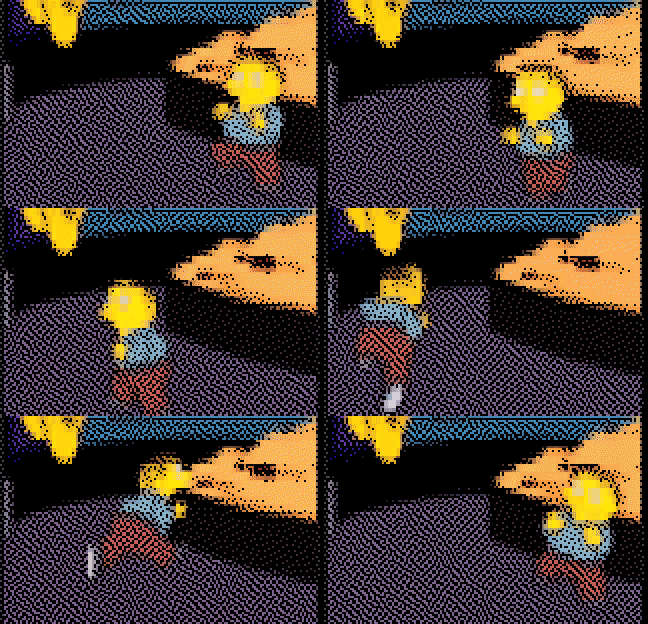
ConsoleImage has quietly grown into a full terminal media player. Version 4.0 adds YouTube playback, auto-downloaded dependencies, and live AI subtitles powered by Whisper, all wrapped in the same "one command and it just works" flow.
Dependencies are pulled down on first use and cached locally, so new features work without manual installs:
| Component | First Download Trigger | Cache Location |
|---|---|---|
| FFmpeg | First video playback | ~/.local/share/consoleimage/ffmpeg/ |
| yt-dlp | First YouTube URL | ~/.local/share/consoleimage/ytdlp/ |
| Whisper Runtime | First --subs whisper |
~/.local/share/consoleimage/whisper/runtimes/ |
| Whisper Models | First transcription | ~/.local/share/consoleimage/whisper/ |
On Windows, caches live under %LOCALAPPDATA%\consoleimage\.
On macOS, caches live under your user-local app data folder (typically ~/Library/Application Support/consoleimage/).
Use -y / --yes to auto-confirm all downloads.
YouTube URLs play directly in the terminal via yt-dlp, running through the same render pipeline as local files. This means the same modes, widths, and output formats apply whether you are watching live or saving a clip. If you already have a custom yt-dlp install, ConsoleImage can point at it.
Subtitles come from three sources: existing files, YouTube captions, or live Whisper transcription. Whisper runs in
the background in 15-second chunks, stays ahead of playback, and caches .vtt files so replays are instant. It supports
multiple model sizes, language selection, and hosted endpoints so you can trade speed for accuracy or offload the work.
Transcript-only output is supported too, which turns ConsoleImage into a subtitle generator that can feed other tools without rendering video.
Point it at a folder and it becomes an image slideshow with keyboard controls, optional shuffle, and manual or timed advance.
What started as a weekend project to implement Alex Harri's algorithm became something more ambitious. The evolution went roughly like this:
The scope creep was real, but each addition felt natural and useful. Now it handles images, GIFs, videos, and even provides an MCP server for AI tool integration.
ConsoleImage provides three distinct ways to render images in the terminal, each with its own trade-offs:
flowchart LR
    A[Source Image] --> B{Choose Mode}
    B --> C[ASCII]
    B --> D[ColorBlocks]
    B --> E[Braille]

    C --> F[Shape-matched characters]
    D --> G[Unicode half-blocks]
    E --> H[2×4 dot patterns]

    style A stroke:#4a9eff
    style B stroke:#ff6600
    style C stroke:#00aa00
    style D stroke:#00aa00
    style E stroke:#00aa00
| Mode | Command | Resolution | Best For |
|---|---|---|---|
| Braille | consoleimage photo.jpg |
8× pixels per cell (2×4 dots) | DEFAULT - Maximum detail |
| ASCII | consoleimage photo.jpg -a |
1× (shape-matched) | Widest compatibility |
| ColorBlocks | consoleimage photo.jpg -b |
2× vertical (half-blocks) | Photos, high fidelity |
Braille is the default. Use -a for ASCII or -b for ColorBlocks.
Some terminals support inline graphics protocols (iTerm2, Kitty, Sixel). ConsoleImage can target those modes for pixel-accurate rendering while keeping the same pipeline and tooling.
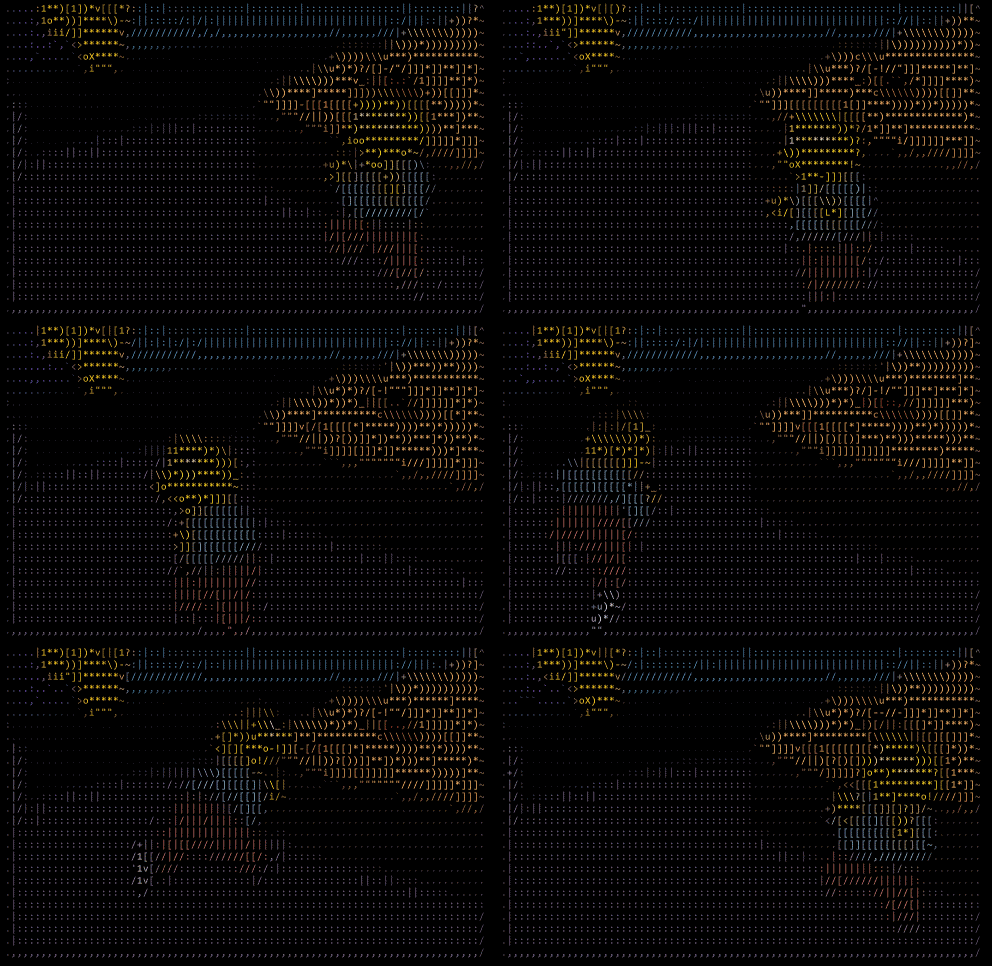
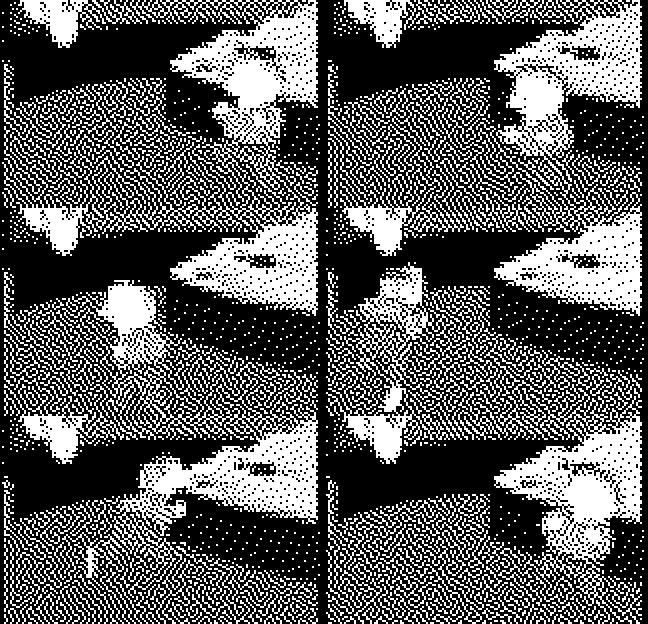
Here is the same animated GIF rendered in each mode:
| ASCII | Braille | Braille (Mono) | ColorBlocks |
|---|---|---|---|
 |
|
 |
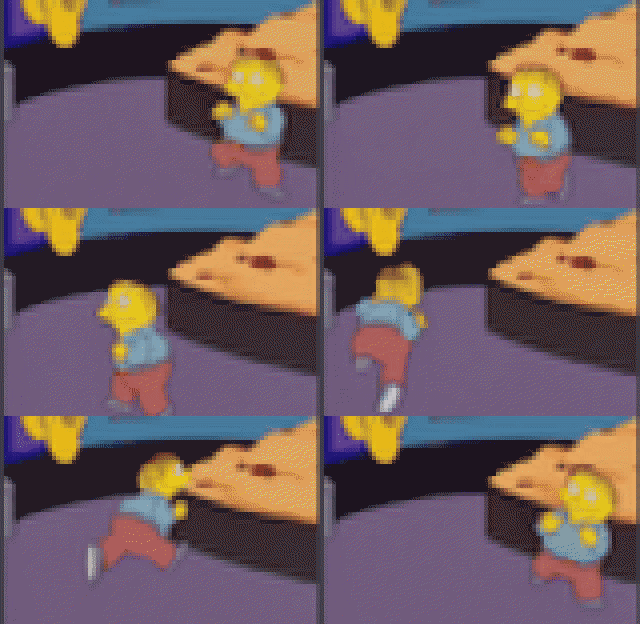 |
| Shape-matched characters | 2×4 dot patterns | Compact, no colour | Unicode half-blocks (▀▄) |
The ASCII output shows shape-matching at work - diagonal edges use / and \, curves use ( and ), and different densities use characters like @, #, *, and .. The monochrome braille version is 3× smaller than colour modes while retaining full dot resolution.
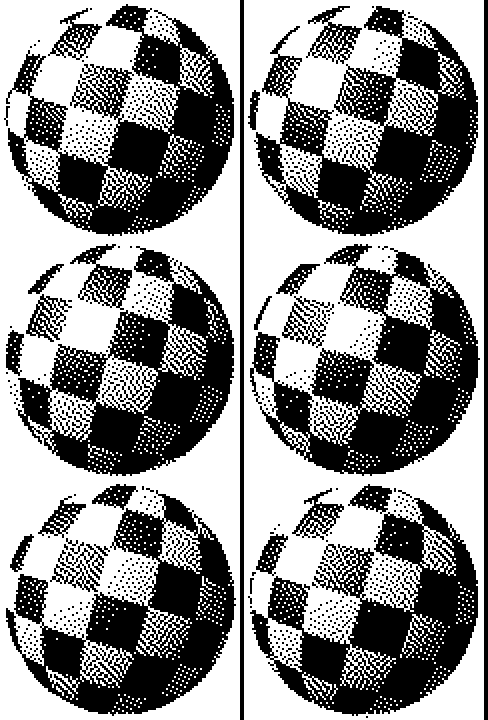
The resolution advantage becomes clear with the classic Amiga bouncing ball - an animation that demands smooth curves and clean diagonals:
| Braille (Monochrome) | Braille (Colour) |
|---|---|
 |
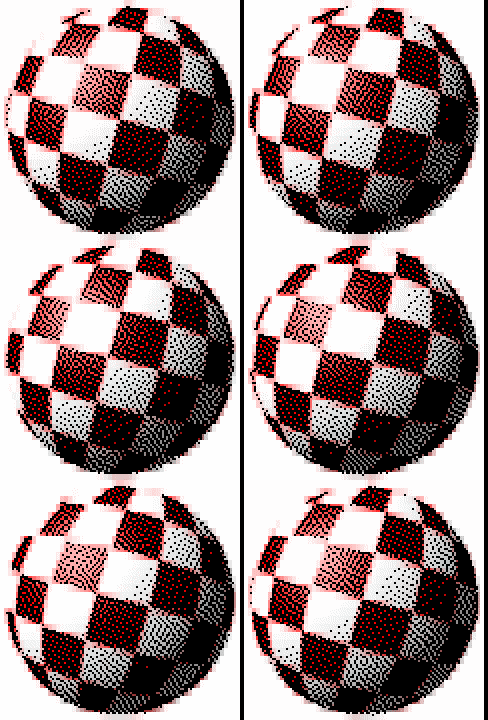 |
| 8× resolution, no colour | 8× resolution, full colour |
Both use the same 2×4 dot grid (8 pixels per character cell). The monochrome version omits ANSI colour codes entirely, producing much smaller output.
For quick previews, SSH sessions, or bandwidth-constrained environments, monochrome braille (--mono) drops colour entirely:
consoleimage animation.gif --mono -w 120
The results are 3-5x smaller than colour modes while retaining full resolution. That boingball animation above? The monochrome version is 259 KB versus 863 KB for colour braille. For text-heavy content or line art, monochrome often looks better because there's no colour noise competing with the shape information.
Traditional ASCII art uses brightness mapping - darker pixels get denser characters like @ or #, lighter pixels get sparse ones like . or . This works, but ignores the actual shape of characters.
Alex Harri's approach is smarter: analyse the visual shape of each character, then match image regions to characters with similar shapes. A diagonal line should map to / or \, not just any character of similar brightness.
Once you treat each character as a tiny 2D shape, rendering becomes nearest-neighbour search in a low-dimensional "shape space".
Each character is analysed using a 6-point sampling grid in a 3×2 staggered pattern:
[0]  [1]  [2]   ← Top row (staggered vertically)
[3]  [4]  [5]   ← Bottom row
The left circles are lowered and right circles are raised to minimise gaps whilst avoiding overlap. Each sampling circle measures "ink coverage" at that position, creating a 6-dimensional shape vector.
Here's the ASCII output again as a reference while we talk about the sampling grid:
// Staggered sampling positions (3x2 grid as per Harri's article)
private static readonly (float X, float Y)[] InternalSamplingPositions =
[
    (0.17f, 0.30f), // Top-left (lowered)
    (0.50f, 0.25f), // Top-center
    (0.83f, 0.20f), // Top-right (raised)
    (0.17f, 0.80f), // Bottom-left (lowered)
    (0.50f, 0.75f), // Bottom-center
    (0.83f, 0.70f)  // Bottom-right (raised)
];
When the renderer initialises, it renders each ASCII character to a small image and samples the 6 regions:
private void GenerateVectors(string characterSet, string? fontFamily, int cellSize)
{
    var font = GetFont(fontFamily, cellSize);

    foreach (var c in characterSet.Distinct())
    {
        var vector = RenderCharacterVector(c, font, cellSize);
        _vectors[c] = vector;
    }

    // Normalise vectors for comparable magnitudes
    NormalizeVectors();
}
The result is a lookup table mapping each character to its shape signature.
Finding the best character for each image cell requires searching 6-dimensional space. A naive linear search would be slow, so we use a K-D tree for fast nearest-neighbour lookups:
flowchart TD
    A[Image Cell] --> B[Sample 6 regions]
    B --> C[Create shape vector]
    C --> D[K-D tree lookup]
    D --> E[Nearest character match]

    style A stroke:#4a9eff
    style C stroke:#ff6600
    style D stroke:#00aa00
    style E stroke:#00aa00
The K-D tree provides O(log n) lookups instead of O(n), and results are cached using quantised vectors for even faster repeated lookups.
Raw shape matching can look flat. The algorithm applies two types of contrast enhancement:
Global Contrast - A power function that crunches lower values toward zero:
value = (value / max)^power × max
Directional Contrast - 10 external sampling circles detect edges where content meets empty space:
// 10 external sampling positions for directional contrast
private static readonly (float X, float Y)[] ExternalSamplingPositions =
[
    (0.17f, -0.10f), // Above top-left
    (0.50f, -0.10f), // Above top-center
    (0.83f, -0.10f), // Above top-right
    (-0.15f, 0.30f), // Left of top-left
    (1.15f, 0.20f),  // Right of top-right
    (-0.15f, 0.80f), // Left of bottom-left
    (1.15f, 0.70f),  // Right of bottom-right
    (0.17f, 1.10f),  // Below bottom-left
    (0.50f, 1.10f),  // Below bottom-center
    (0.83f, 1.10f)   // Below bottom-right
];
The renderer includes several performance tricks:
Vector128/Vector256/Vector512 for distance calculations// Pre-computed sin/cos lookup tables (major performance optimisation)
private static readonly (float Cos, float Sin)[] InnerRingAngles = PrecomputeAngles(6, 0);
private static readonly (float Cos, float Sin)[] MiddleRingAngles = PrecomputeAngles(12, MathF.PI / 12);
private static readonly (float Cos, float Sin)[] OuterRingAngles = PrecomputeAngles(18, 0);
The braille mode was the biggest technical leap. Traditional ASCII gives you one "pixel" per character cell. Unicode braille characters pack 8 pixels into each cell, and ConsoleImage treats those dots as a temporal signal, not just a static bitmap. The result is a kind of glyph-level "superresolution" where motion and frame-to-frame stability make the perceived detail noticeably higher than the raw grid would suggest.
Braille characters (U+2800 - U+28FF) encode an 8-dot pattern in a 2×4 grid:
┌─────┬─────┐
│  1  │  4  │  ← Row 0
├─────┼─────┤
│  2  │  5  │  ← Row 1
├─────┼─────┤
│  3  │  6  │  ← Row 2
├─────┼─────┤
│  7  │  8  │  ← Row 3
└─────┴─────┘
  Col0  Col1
Each dot corresponds to a bit:
// Dot bit positions in braille character
// Pattern:  1 4
//           2 5
//           3 6
//           7 8
// Listed in 2×4 scan order: 1,4,2,5,3,6,7,8.
private static readonly int[] DotBits = { 0x01, 0x08, 0x02, 0x10, 0x04, 0x20, 0x40, 0x80 };
The character code is simply 0x2800 + (bit pattern). An empty braille cell is ⠀ (U+2800), a full block is ⣿ (U+28FF).
flowchart LR
    A[Source Image] --> B[Resize to W×2, H×4]
    B --> C[Grayscale conversion]
    C --> D[Otsu threshold + temporal stabilisation]
    D --> E[Atkinson dithering]
    E --> F[Build braille codes]
    F --> G[Hybrid colours + perceptual compensation]
    G --> H[Terminal output]

    style A stroke:#4a9eff
    style D stroke:#ff6600
    style E stroke:#ff6600
    style G stroke:#00aa00
Because each braille cell encodes a 2×4 dot grid, the renderer operates on an internal image that is 2× wider and 4× taller than the target character dimensions.
Converting to braille requires binary decisions - each dot is on or off. A fixed threshold (like 50% brightness) fails for images that are predominantly light or dark.
Otsu's method finds the optimal threshold by maximising the variance between foreground and background. The algorithm:
This automatically adapts to any image - dark images get low thresholds, bright images get high thresholds. (Full implementation in the BrailleRenderer source.)
In practice, naïve Otsu thresholding is insufficient for animation. The implementation layers temporal coherence (think: hysteresis so dot decisions do not flip frame-to-frame) and perceptual compensation on top, which is why the output remains stable in motion rather than flickering between frames.
Binary thresholding creates harsh edges. Dithering diffuses quantisation error to neighbouring pixels, creating the illusion of intermediate tones.
We use Atkinson dithering (developed by Bill Atkinson for the original Macintosh) instead of the more common Floyd-Steinberg algorithm:
        X   1   1
    1   1   1
        1

(each "1" receives 1/8 of the error)
Why Atkinson works better for braille:
| Aspect | Floyd-Steinberg | Atkinson |
|---|---|---|
| Error diffused | 100% (16/16) | 75% (6/8) |
| Spread pattern | 4 pixels | 6 pixels |
| Result | Softer gradients | Higher contrast |
| Best for | Photos | Line art, text |
Atkinson deliberately discards 25% of the error, producing sharper edges - critical for small dot patterns.
private static void ApplyAtkinsonDithering(Span<short> buffer, int width, int height, byte threshold)
{
    for (int y = 0; y < height; y++)
    {
        for (int x = 0; x < width; x++)
        {
            int idx = y * width + x;
            short oldPixel = buffer[idx];
            byte newPixel = oldPixel > threshold ? (byte)255 : (byte)0;
            buffer[idx] = newPixel;

            short error = (short)(oldPixel - newPixel);
            short diffuse = (short)(error / 8);  // 1/8 of error

            // Diffuse to 6 neighbours (only 6/8 = 75% of error)
            if (x + 1 < width)
                buffer[idx + 1] += diffuse;
            if (x + 2 < width)
                buffer[idx + 2] += diffuse;
            if (y + 1 < height)
            {
                if (x > 0)
                    buffer[idx + width - 1] += diffuse;
                buffer[idx + width] += diffuse;
                if (x + 1 < width)
                    buffer[idx + width + 1] += diffuse;
            }
            if (y + 2 < height)
                buffer[idx + width * 2] += diffuse;
        }
    }
}
Terminal colours present a challenge: we can only set one foreground colour per character, but braille represents 8 different source pixels.
Averaging all 8 pixel colours produces a "solarized" look - colours mix into muddy greys. Instead, we only sample colours from pixels where dots are lit:
flowchart TD
    A[2×4 Pixel Block] --> B{Which pixels are lit?}
    B -->|Dots 1,4,7| C[Sample only those 3 pixels]
    B -->|Dots 2,3,5,6,8| D[Sample only those 5 pixels]
    C --> E[Average lit pixel colours]
    D --> E
    E --> F[Apply colour boost]
    F --> G[Set as foreground colour]

    style A stroke:#4a9eff
    style B stroke:#ff6600
    style E stroke:#00aa00
    style F stroke:#00aa00
This ensures the displayed colour matches what the user actually sees - the lit dots.
Braille characters are inherently sparse - a character with only 2-3 dots lit appears dimmer than a solid block. Without compensation, braille output looks objectively "correct" but visually dull.
To restore perceived chroma rather than exaggerate colour:
Default boosts (tunable):
// Apply gamma correction and boost saturation/brightness for braille
(r, g, b) = BoostBrailleColor(r, g, b, _options.Gamma);
For a 100×50 character output:
| Mode | Effective Pixels |
|---|---|
| ASCII | 100 × 50 = 5,000 |
| ColorBlocks | 100 × 100 = 10,000 |
| Braille | 200 × 200 = 40,000 |
Braille provides 8x the resolution of ASCII and 4x the resolution of colour blocks.
The best demonstration of braille's resolution advantage is with smooth gradients and fine detail. This landscape photograph shows how braille captures subtle tonal variations that would be lost in ASCII:
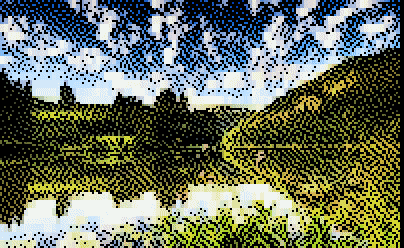
At this point I realized I wasn't looking at "ASCII art" anymore - it was recognisable imagery.
Notice how the sky gradients and terrain details remain visible even at terminal resolution. With standard ASCII, these would become blocky and lose their smooth transitions. The 2×4 dot grid provides enough spatial resolution that the eye integrates the pattern as continuous imagery rather than discrete characters.
There is also a -M flag for a Matrix digital rain overlay effect, because why not. It composites falling katakana streams over your source image. Silly, but fun.
Animation in terminals is tricky - naive approaches cause visible flicker. ConsoleImage uses several techniques:
DECSET 2026 Synchronised Output - a terminal feature that lets you "commit" a whole frame at once, preventing tearing (supported in several modern terminals, silently ignored elsewhere):
// Start synchronised output
Console.Write("\x1b[?2026h");

// Write entire frame
Console.Write(frameContent);

// End synchronised output
Console.Write("\x1b[?2026l");
Delta Rendering - Only updates changed cells:
public (string output, CellData[,] cells) RenderWithDelta(
    Image<Rgba32> image,
    CellData[,]? previousCells,
    int colorThreshold = 8)
{
    var cells = RenderToCells(image);
    var height = cells.GetLength(0);
    var width = cells.GetLength(1);

    // First frame or dimension change - full redraw
    if (previousCells == null)
        return (RenderCellsToString(cells), cells);

    // Delta render - only output changed cells
    var sb = new StringBuilder();

    for (var y = 0; y < height; y++)
    {
        for (var x = 0; x < width; x++)
        {
            var current = cells[y, x];
            var previous = previousCells[y, x];

            // Skip if cell hasn't changed
            if (current.IsSimilar(previous, colorThreshold))
                continue;

            // Position cursor and output
            sb.Append($"\x1b[{y + 1};{x + 1}H");
            sb.Append(current.ToAnsi());
        }
    }

    return (sb.ToString(), cells);
}
This typically reduces output by 70-90% for video content where most of the frame is static.
For moving content, small per-frame colour changes can shimmer. ConsoleImage includes a dejitter pass that smooths colour changes across frames, improving perceived stability, especially in braille and colour-block modes.
Video files and YouTube URLs are handled via FFmpeg and yt-dlp (auto-downloaded on first use). You can start at offsets, trim durations, switch render modes, add subtitles, and export to GIF or document formats using the same rendering core.
Video Playback Controls:
| Key | Action |
|---|---|
Space |
Pause/Resume |
Q / Esc |
Quit |
ConsoleImage can save rendered output to self-contained documents that play back without the original source. The .cidz
format uses GZip compression with delta encoding (often ~7:1 versus raw JSON), and long videos can be streamed as NDJSON
so frames are written incrementally instead of buffered in memory.
There is also a lightweight player package (ConsoleImage.Player) that can replay documents without ImageSharp or FFmpeg,
which makes animated CLI logos feasible without bundling heavy dependencies.
There is a full C# API for rendering images, GIFs, video, and documents with fine-grained render options. The same renderers back the CLI, so you can embed the algorithms in your own tools without re-implementing the pipeline.
Spectre.Console integration is available for both live renders and document playback, which lets you treat images as renderables inside layouts. The README and NuGet package pages cover the API surface in detail.
If you want the full technical detail, these are the canonical docs:
ConsoleImage includes an MCP (Model Context Protocol) server that turns it into a "visual probe" for AI workflows. Rather than just being "AI integration because trend", it's actually useful: the model can ask for reduced views of media, measure simple signals (colour, motion, change), and only then decide what to keep.
Because ConsoleImage can render perceptually meaningful previews, an AI can reason about video content iteratively: sampling, comparing, and refining rather than consuming entire videos blindly.
With MCP integration, an AI can:
While writing this article, I used ConsoleImage as an MCP tool to find good example clips. The workflow:
→ extract_frames (low-res preview at various timestamps)
→ compare_render_modes (ASCII vs braille at promising scenes)
→ render_to_gif (final export of selected clips)
Here's a tiny braille preview at 30 characters wide - enough to spot composition and movement:
⣿⣿⣿⣿⣿⣿⣿⣿⡿⢃⠌⡱⢈⠱⣈⠱⣈⠱⢈⠛⢿⠿⠟⢛⠛⢛⣿⣿⣿⣿⢿⣿⣿⣿⣿⣿⣿⣿⣿⣿
⣿⣿⣿⣿⣿⣿⣿⣿⠇⡌⠒⡄⢃⢲⣾⣷⠶⡉⠤⡀⢆⠢⢉⠢⡘⢄⢂⠉⣺⣽⢿⣞⣷⣻⣞⣷⣻⣞⣷⣿
⣿⣿⣿⣿⣿⣿⣿⣿⠐⡈⢅⠢⡁⣾⣿⡏⠤⠑⡂⢅⠢⣕⢨⣔⠡⠌⣂⠱⠘⠯⠿⣾⣽⣳⠯⣝⡗⢿⣞⣿
This let me quickly scan content to identify interesting frames rather than rendering everything at full resolution.
Setup is a single MCP server entry; see the MCP README for details.
Key tools include render_image, render_to_gif, extract_frames, and compare_render_modes.
flowchart TB
    subgraph Core["ConsoleImage.Core (NuGet)"]
        AR[AsciiRenderer]
        BR[BrailleRenderer]
        CB[ColorBlockRenderer]
        CM[CharacterMap]
        AP[AnimationPlayer]
        DOC[Document Format]
    end

    subgraph Video["ConsoleImage.Video.Core"]
        FF[FFmpegService]
        VP[VideoPlayer]
    end

    subgraph CLI["ConsoleImage CLI"]
        MAIN[Unified CLI]
    end

    subgraph MCP["ConsoleImage.Mcp"]
        TOOLS[AI Tools]
    end

    MAIN --> Core
    MAIN --> Video
    TOOLS --> Core

    style Core stroke:#4a9eff
    style Video stroke:#ff6600
    style CLI stroke:#00aa00
    style MCP stroke:#9933ff
What started as a quick implementation of Alex Harri's ASCII rendering algorithm turned into a terminal graphics system. The time-boxing approach meant shipping something useful quickly, then iterating when inspiration struck.
Key learnings:
The code is public domain (Unlicense) - use it however you like. Contributions welcome on GitHub.
Another time-boxed tool is lucidVIEW - a fast, small Avalonia client that renders Markdown nicely without using a WebView.
More on that in Part 2.

© 2026 Scott Galloway — Unlicense — All content and source code on this site is free to use, copy, modify, and sell.



